
iOS 26 Developer Beta with ‘Liquid Glass’ UI: Apple's Big Redesign is Here – How to Try It
Apple has once again pushed the boundaries of mobile aesthetics and functionality with the release of the iOS 26 Developer Beta, introducing the revolutionary 'Liquid Glass' UI. This isn't just a minor tweak; it's a profound visual overhaul that promises to redefine your iPhone experience. If you're eager to get a sneak peek at the future of iOS, here’s everything you need to know about this major redesign and how to install the developer beta.
Unveiling the 'Liquid Glass' UI: A Transparent Future
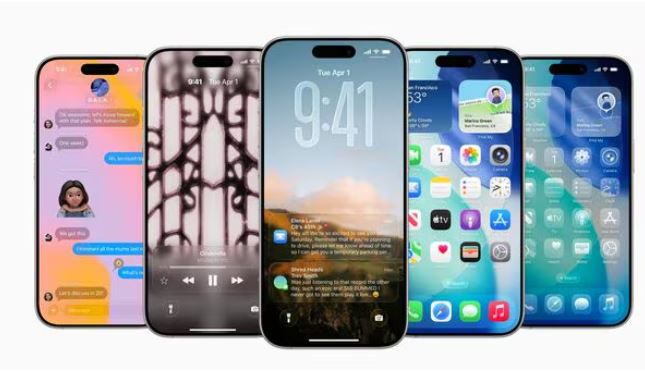
The 'Liquid Glass' UI is the centerpiece of iOS 26, extending a new translucent and reflective design language across the entire operating system. Inspired by the visual depth of Apple's Vision Pro, this redesign brings an unprecedented level of fluidity and immersion to the iPhone.
Key visual characteristics of the 'Liquid Glass' UI include:
- Dynamic Translucency: UI elements, such as controls, navigation bars, app icons, and widgets, now feature a glass-like transparency, subtly reflecting and refracting their surroundings. This creates a sense of depth and integration with your wallpaper and on-screen content.
- 3D Spatial Scenes for Lock Screen: The Lock Screen gets an enhanced three-dimensional effect, utilizing machine learning to add depth to your background photos. Watch as elements like the time digits dynamically resize and interact with your chosen imagery.
- Redesigned App Icons & Widgets: Beyond the standard Light and Dark modes, iOS 26 introduces an "All Clear" option for app icons, rendering them as clear glass with no color, for a truly minimalist aesthetic. The dock and widgets now appear as rounded, glassy panels that seemingly float above your background.
- Enhanced In-App Experiences: Core Apple apps like Phone, Messages, Camera, Photos, Apple Music, News, and Podcasts have been reimagined to align with the 'Liquid Glass' theme. Expect streamlined layouts, floating tab bars that dynamically shrink and expand, and more intuitive controls.
This new design isn't merely cosmetic. Apple states that 'Liquid Glass' aims to make the system experience "more expressive and delightful," fostering a deeper connection between the user and their device. It's a bold move that unifies the visual language across iOS, iPadOS, macOS, watchOS, and tvOS, laying the groundwork for future hardware innovations.
What Else is New in iOS 26?
Beyond the stunning 'Liquid Glass' UI, iOS 26 is packed with intelligent experiences and app improvements:
- Deeper Apple Intelligence Integration: Expect more capable and privacy-centric AI features woven throughout the system. This includes real-time live translation within apps, enhanced visual intelligence for on-screen information, and new generative AI capabilities like "Genmoji" for creating custom emojis and "Image Playground" for unique image generation.
- Smarter Communication: The Phone app sees a significant revamp with a more compact view for incoming calls and new features like "Call Screening" to eliminate unwanted interruptions and "Hold Assist" to notify you when a live agent is available. Messages also receive enhancements, including the ability to screen messages from unknown senders and intelligent suggestions for polls within conversations.
- Revamped Camera and Photos Apps: The Camera app sports a simplified, more intuitive design focused on capturing the moment. The Photos app gets a much-needed overhaul with separate tabs for Library and Collections, making photo organization and viewing a breeze.
- Safari Improvements: Web pages in Safari now flow from top to bottom, maximizing screen real estate, while frequently used actions remain easily accessible.
- Accessibility Enhancements: While the 'Liquid Glass' UI is visually striking, Apple has also included accessibility options, such as "reduced transparency" in Settings, to ensure readability and usability for all users.
How to Install the iOS 26 Developer Beta
If you're ready to dive into the future of iOS, here’s how to install the developer beta. A word of caution: Beta software can be unstable and may contain bugs, leading to unexpected issues, battery drain, or app incompatibilities. It's highly recommended to install betas on a secondary device if possible, and always back up your primary device before proceeding.
Requirements:
- Compatible iPhone model (iOS 26 drops support for some older iPhones, generally supporting iPhone 11 and later. iPhone 15 Pro, 15 Pro Max, and upcoming iPhone 16 series are required for full Apple Intelligence features).
- iOS 16.4 or later already installed.
- An Apple ID signed in on your device.
- Enrollment in the Apple Developer Program (a free tier is available).
Steps to Install:
- Backup Your iPhone: This is crucial. Connect to Wi-Fi, go to Settings > [Your Name] > iCloud > iCloud Backup, and tap "Back Up Now."
- Enroll in Apple Developer Program: If you haven't already, visit the Apple Developer enrollment page. Sign in with the Apple ID associated with the iPhone you plan to update.
- Enable Beta Updates on Your iPhone:
- Go to Settings > General > Software Update.
- Tap Beta Updates.
- If the Apple Account listed is not the one associated with your Developer Program, tap it to enter the correct one.
- Select "iOS 26 Developer Beta."
- Return to the Software Update screen.
- Download and Install: The iOS 26 Developer Beta should now appear as a downloadable option. Tap "Download and Install" and follow the on-screen instructions.
Once installed, your iPhone will restart, and you'll be greeted with the stunning new 'Liquid Glass' UI. Explore the redesigned apps, new features, and the enhanced Apple Intelligence capabilities. Remember to provide feedback to Apple through the Feedback Assistant app, as this helps them refine the software before its official public release in the fall.
Conclusion
The iOS 26 Developer Beta marks a significant leap forward for Apple's mobile operating system. The 'Liquid Glass' UI brings a fresh, dynamic, and immersive visual experience, while deeper Apple Intelligence integration and app enhancements promise a more intuitive and powerful iPhone. While developer betas come with their quirks, trying it out offers a unique glimpse into the future of iOS and the direction Apple is heading with its user interfaces.
Frequently Asked Questions (FAQ)
Q1: What is "Liquid Glass" UI in iOS 26? A1: "Liquid Glass" is Apple's new design language introduced in iOS 26. It features translucent and reflective UI elements that mimic the appearance and behavior of glass, providing a sense of depth and integration with your device's content and surroundings.
Q2: When will iOS 26 be officially released to the public? A2: The final public release of iOS 26 is expected in the fall of 2025, likely alongside the launch of the new iPhone 17 series.
Q3: Is the iOS 26 Developer Beta stable enough for daily use? A3: Developer betas are early, unfinished versions of software and are generally not recommended for daily use on your primary device. They can contain bugs, cause app crashes, and may lead to reduced battery life. A more stable public beta is usually released later in the summer.
Q4: Which iPhone models are compatible with iOS 26? A4: iOS 26 supports iPhone models from the iPhone 11 and later. However, certain advanced Apple Intelligence features may require newer chipsets, such as the A17 Bionic (found in iPhone 15 Pro, 15 Pro Max) or the upcoming iPhone 16 series.
Q5: How can I provide feedback to Apple about the iOS 26 beta? A5: Apple includes a "Feedback Assistant" app on beta builds. You can use this app to report bugs, suggest improvements, and provide general feedback directly to Apple's development team.
Q6: Can I revert from the iOS 26 Developer Beta back to a stable iOS version? A6: Yes, it is possible to downgrade from a beta version. However, it typically involves restoring your iPhone, which will erase all data. It's crucial to have a backup from a stable iOS version if you plan to revert.
Q7: Are there any accessibility concerns with the 'Liquid Glass' UI? A7: While the 'Liquid Glass' UI is visually striking, some users have raised concerns about readability due to its transparency, especially with busy backgrounds. Apple has included an accessibility option called "Reduced Transparency" in Settings to mitigate this, making UI elements more opaque for better legibility.
Published on: June 10, 2025
Uploaded by: Pankaj
www.vizzve.com || www.vizzveservices.com
Follow us on social media: Facebook || Linkedin || Instagram