

Introduction
A laptop is no longer just a computer.
For many people, it is a complete work, study, entertainment and communication system.
Students use laptops for online classes and research. Professionals use them for presentations, meetings and productivity. Creators need them for editing and design. Gamers demand powerful graphics and cooling. Travelers want something lightweight with dependable battery life.
And the laptop itself is only part of the setup.
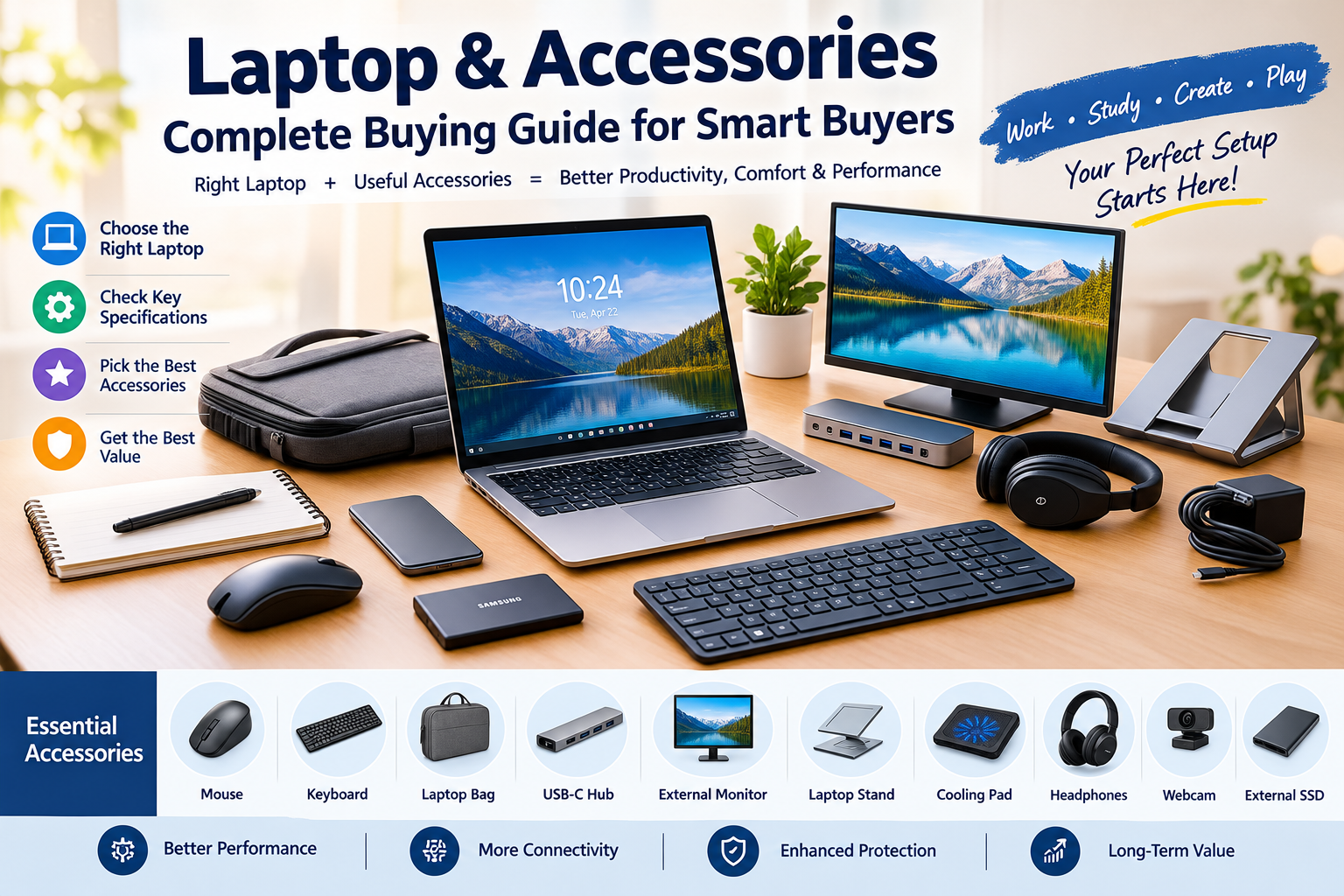
The right laptop accessories can make a major difference to comfort, productivity, connectivity and protection.
A good mouse can improve precision. A USB-C hub can expand connectivity. An external monitor can make multitasking easier. A quality laptop bag can protect the device during travel.
The important point is simple:
Do not buy a laptop based only on processor name, RAM or appearance. Choose the complete setup according to how you actually use your computer.
AI Answer Box: What Should You Look for in a Laptop and Accessories?
When buying a laptop, focus on the processor, RAM, SSD storage, display, battery, weight, ports, operating system, upgradeability and warranty. Then select accessories based on your specific use case.
Quick recommendation
| User Type | Laptop Priority | Useful Accessories |
|---|---|---|
| Student | Battery + portability | Mouse, sleeve, headphones |
| Office professional | Performance + keyboard | Mouse, monitor, hub |
| Creator | CPU/GPU + display | Monitor, SSD, card reader |
| Gamer | GPU + cooling | Gaming mouse, headset, cooling solution |
| Traveler | Weight + battery | Sleeve, compact charger, power bank where supported |
| Home user | Value + reliability | Webcam, mouse, keyboard |
For Windows 11, Microsoft's current minimum requirements include 4 GB RAM, 64 GB storage, UEFI/Secure Boot capability, TPM 2.0 and compatible graphics hardware. These are minimum requirements, not necessarily specifications you should target when buying a new laptop.
What Is a Laptop and Why Do Accessories Matter?
A laptop combines a display, processor, memory, storage, keyboard, touchpad, battery and other components into a portable computer.
Accessories extend its functionality.
They can provide:
- Better ergonomics
- More connectivity
- Improved audio
- Extra storage
- Physical protection
- Better pointing and typing
- Larger-screen productivity
- Improved desk organization
- More convenient charging
The best accessory is not necessarily the most expensive one.
It is the one that solves a problem you actually have.
How to Choose the Right Laptop
1. Start With Your Use Case
Before comparing brands, decide what you need the laptop to do.
Basic everyday use
For:
- Web browsing
- Documents
- Video streaming
- Online meetings
- Basic productivity
You generally do not need an extremely powerful machine.
Professional work
If you regularly use:
- Large spreadsheets
- Business applications
- Multiple browser tabs
- Video conferencing
- Programming tools
- Data analysis
Prioritize processor performance, sufficient RAM, fast SSD storage and a comfortable keyboard.
Creative work
Photo and video editors may need:
- A stronger processor
- Dedicated or capable integrated graphics
- More RAM
- Fast SSD storage
- A high-quality display
- Good color reproduction
Gaming
Gaming laptops require special attention to:
- GPU
- CPU
- Cooling
- Display refresh rate
- RAM
- SSD capacity
- Power adapter
- Upgradeability
Laptop Processor: What Should You Look For?
The processor, or CPU, is one of the most important components in a laptop.
But processor names alone do not tell the complete story.
When comparing laptops, look at:
- Processor generation
- Number of cores
- Performance class
- Power efficiency
- Integrated graphics
- Sustained performance
- Compatibility with your software
Expert buying tip
Do not automatically assume that the laptop with the highest advertised processor number is the best choice.
A balanced system with an appropriate CPU, sufficient RAM, fast storage and good cooling can provide a better everyday experience than a machine with a powerful processor paired with weak supporting hardware.
How Much RAM Do You Need?
RAM affects how comfortably a computer handles multiple applications and tasks simultaneously.
Practical RAM guide
| RAM | Best For |
|---|---|
| 4 GB | Basic minimum for some systems; not ideal for most new buyers |
| 8 GB | Basic everyday computing |
| 16 GB | Recommended general-purpose target for many users |
| 32 GB | Heavy multitasking, development, creative workloads |
| 64 GB+ | Specialized professional workloads |
Microsoft lists 4 GB as the minimum RAM requirement for Windows 11, but minimum requirements should not be confused with an ideal specification for a new purchase.
Should you buy 16 GB RAM?
For many students, professionals and everyday users, 16 GB is a sensible target if the budget allows.
It gives more headroom for multitasking than an entry-level configuration.
SSD vs HDD: Which Is Better?
Modern laptops commonly use SSD storage because SSDs offer fast access and generally improve system responsiveness.
SSD advantages
- Faster boot times
- Faster application loading
- No spinning mechanical disks
- Better responsiveness
- Usually quieter operation
- Good portability characteristics
HDD advantages
- Can offer inexpensive high-capacity storage
- Useful for some desktop or backup scenarios
Quick comparison
| Feature | SSD | HDD |
|---|---|---|
| Speed | Very fast | Slower |
| Moving parts | No | Yes |
| Noise | Silent | Mechanical noise |
| Durability | Generally better for mobile use | More sensitive to physical shock |
| Best use | Laptop primary storage | Bulk/backup storage |
For most new laptop buyers, an SSD should be the default expectation.
How Much Storage Do You Need?
Storage needs depend heavily on your files and applications.
Suggested starting points
256 GB: Basic use, cloud-heavy workflows
512 GB: A strong general-purpose choice
1 TB: Better for creators, gamers and users storing large files locally
2 TB or more: Useful for extensive media libraries, professional workloads or large game collections
Remember that the operating system and applications consume storage, so advertised capacity is not the same as free usable space.
Laptop Display: What Really Matters?
A laptop display affects your experience every day.
Look at:
- Screen size
- Resolution
- Brightness
- Refresh rate
- Panel technology
- Color coverage
- Viewing angles
- Touch support
13–14 Inch Laptops
Good for:
- Travel
- Students
- Mobile professionals
- Compact workspaces
15–16 Inch Laptops
Good for:
- Office productivity
- Creative work
- Gaming
- People who prefer larger screens
Display comparison
| Display Factor | Best For |
|---|---|
| Higher resolution | Sharper text and images |
| Higher refresh rate | Gaming and smoother motion |
| Higher brightness | Outdoor/bright environments |
| Better color coverage | Photo/video/design work |
| Larger screen | Multitasking |
| Touchscreen | Interactive workflows |
Do not choose a display based on resolution alone.
A bright, well-calibrated panel can be more useful than simply having a higher pixel count.
How Important Is Laptop Battery Life?
Battery life depends on:
- Processor efficiency
- Display brightness
- Screen resolution
- Battery capacity
- Application workload
- Wireless activity
- Background processes
- Power-management settings
Manufacturers' battery estimates are useful for comparison, but real-world results can vary.
For frequent travelers, prioritize:
- Efficient processor
- Larger battery capacity
- Fast charging
- USB-C charging where supported
- Lightweight design
Laptop Ports and Connectivity
Ports are easy to overlook until you actually need one.
Check whether the laptop includes:
- USB-A
- USB-C
- HDMI
- Headphone jack
- SD or microSD card slot
- Ethernet
- Display output
- Charging port
USB-C deserves special attention because the connector does not automatically guarantee the same capabilities on every laptop.
USB4 can support high-bandwidth data and display protocols, and the USB4 specification supports up to 80 Gbps operation with appropriate certified cables and hardware.
Important buying lesson
USB-C is a connector shape, not a guarantee of identical performance.
Before buying a dock, monitor or high-speed storage device, check the laptop's exact port specifications.
Wi-Fi and Wireless Connectivity
Modern laptops increasingly support newer wireless standards.
When comparing models, check:
- Wi-Fi generation
- Bluetooth version
- Wireless antenna configuration
- Ethernet availability
- Compatibility with your home/office network
For users with compatible networking equipment, newer Wi-Fi generations can offer improved throughput and efficiency.
However, buying a laptop with the newest wireless standard does not automatically make an older router faster.
Best Laptop Accessories to Buy
Now comes the second half of the setup.
1. Laptop Mouse
A mouse is one of the most useful accessories for many laptop users.
Choose based on:
- Ergonomics
- Sensor accuracy
- Wireless connectivity
- Battery life
- Number of buttons
- Size
- Grip style
For office work, comfort may matter more than extremely high sensor specifications.
For gaming, sensor performance, responsiveness and shape become more important.
2. Laptop Keyboard
A separate keyboard can be useful when your laptop becomes a permanent desk workstation.
Benefits include:
- Better typing position
- More comfortable desk setup
- Full-size layouts
- Dedicated number pads
- Mechanical or low-profile options
Pairing a laptop with a separate keyboard and monitor can significantly improve a desktop-style workspace.
3. Laptop Stand
A laptop stand can raise the display and help create a more comfortable workstation.
A good setup can look like:
Laptop stand + external keyboard + mouse + monitor
This separates the screen from the primary typing position and gives you more flexibility when arranging your desk.
4. USB-C Hub
A USB-C hub can add ports such as:
- USB-A
- HDMI
- Ethernet
- SD card
- USB-C
- Audio
But compatibility is critical.
Check:
- Supported data speed
- Display resolution
- Power delivery
- Number of displays
- Operating-system compatibility
USB-IF's USB4 specifications support multiple data and display protocols over USB-C, but actual capabilities depend on the devices, ports and cables involved.
5. External Monitor
An external monitor is one of the biggest productivity upgrades for desk-based laptop users.
It is particularly useful for:
- Coding
- Research
- Finance
- Writing
- Video editing
- Graphic design
- Large spreadsheets
- Multitasking
One monitor vs two monitors
| Setup | Advantage |
|---|---|
| Laptop only | Maximum portability |
| Laptop + monitor | Better desk productivity |
| Laptop + two monitors | Extensive multitasking |
| Laptop + ultrawide | Large continuous workspace |
6. Laptop Bag or Sleeve
A laptop should be protected during transportation.
Look for:
- Correct laptop size
- Padding
- Strong zippers
- Water resistance
- Comfortable straps
- Dedicated charger compartment
- Additional storage
A sleeve is useful for placing a laptop inside another bag.
A backpack designed for laptops is better for frequent commuters.
7. Laptop Charger and USB-C Charger
Use a compatible charger that meets your laptop's power requirements.
A charger that is physically compatible may not necessarily deliver the required power.
Before buying a replacement, check:
- Required wattage
- Charging protocol
- Connector
- Voltage/current requirements
- Manufacturer compatibility
Avoid unknown or poorly manufactured chargers simply because they are cheaper.
8. Laptop Cooling Pad
Cooling accessories can be useful for laptops that operate under sustained heavy loads.
They may be particularly relevant for:
- Gaming
- Video rendering
- 3D workloads
- Long compilation sessions
- Other sustained CPU/GPU workloads
However, a cooling pad cannot compensate for poor laptop cooling design.
9. External SSD
An external SSD is useful for:
- Backups
- Video files
- Photos
- Large projects
- Game libraries
- Moving files between computers
When buying one, check both the SSD's rated speed and the laptop's port capability.
A very fast external drive connected through a slower port will not operate at its maximum potential.
10. Laptop Headphones or Headset
For online meetings, gaming or entertainment, consider:
- Microphone quality
- Comfort
- Wired/wireless connectivity
- Battery life
- Noise cancellation
- Platform compatibility
For professional meetings, microphone quality is often more important than marketing claims about sound quality.
11. Webcam
A separate webcam can improve video calls when the built-in camera is inadequate.
Look at:
- Resolution
- Low-light performance
- Autofocus
- Microphone quality
- Field of view
- Mounting options
12. Laptop Cleaning Kit
Dust, fingerprints and debris can accumulate around:
- Keyboard
- Display
- Touchpad
- Ports
- Cooling vents
Use cleaning products designed for electronics and follow the laptop manufacturer's care instructions.
Never spray liquid directly into ports or onto the display.
Laptop Accessories Comparison Table
| Accessory | Importance | Best For |
|---|---|---|
| Mouse | High | Office, study, gaming |
| Laptop bag | High | Travel and protection |
| USB-C hub | High | Connectivity |
| External monitor | High | Productivity |
| Keyboard | Medium–High | Desk setups |
| Laptop stand | Medium–High | Ergonomics |
| External SSD | Medium–High | Storage and backup |
| Headset | Medium | Calls and gaming |
| Webcam | Medium | Video meetings |
| Cooling pad | Situational | Heavy workloads |
| Cleaning kit | Medium | Maintenance |
Laptop Accessories: Essential vs Optional
Essential Accessories
For many users:
- Laptop bag or sleeve
- Mouse
- Charger
- Basic cleaning supplies
Useful Accessories
Depending on your setup:
- USB-C hub
- Laptop stand
- External keyboard
- External monitor
- External SSD
- Headset
Specialized Accessories
For specific users:
- Gaming mouse
- Mechanical keyboard
- Drawing tablet
- SD card reader
- High-speed external SSD
- Monitor calibration tools
- Docking station
How to Build a Laptop Setup on a Budget
You do not need to purchase everything at once.
Stage 1: Laptop
Spend most of your budget on the machine itself.
Stage 2: Protection
Buy:
- Sleeve or bag
- Screen-safe cleaning supplies
Stage 3: Productivity
Add:
- Mouse
- Keyboard
- Laptop stand
Stage 4: Expansion
Add:
- USB-C hub
- External monitor
- External SSD
Stage 5: Specialized Equipment
Only purchase specialized accessories when your work requires them.
This prevents spending money on accessories that remain unused.
How to Choose a Laptop for Students
Students usually need a balance of:
- Price
- Battery life
- Portability
- Reliability
- Keyboard quality
- Webcam
- Storage
- Warranty
Recommended priorities
- Battery life
- Portability
- 16 GB RAM if affordable
- SSD storage
- Comfortable keyboard
- Good webcam
- Reliable warranty
A student writing documents and attending online classes usually does not need the same hardware as a video editor or gaming enthusiast.
How to Choose a Laptop for Office Work
Office users should prioritize:
- Comfortable keyboard
- Good display
- Reliable performance
- Battery life
- Webcam
- Microphone
- Wi-Fi
- USB-C connectivity
- Warranty and service
For desk workers, an external monitor and ergonomic accessories may improve productivity more than upgrading to an unnecessarily powerful CPU.
How to Choose a Laptop for Gaming
Gaming is more dependent on graphics hardware.
Focus on:
- Dedicated GPU
- CPU
- Cooling
- RAM
- SSD
- Display refresh rate
- Display response time
- Power adapter
- Upgrade options
Gaming accessories
A gaming setup can include:
- Gaming mouse
- Gaming keyboard
- Headset
- External monitor
- Controller
- Cooling solution
How to Choose a Laptop for Content Creation
Creators should look beyond basic specifications.
Prioritize:
- CPU performance
- GPU performance
- RAM
- SSD speed and capacity
- Display quality
- Color accuracy
- Ports
- SD card support
- External monitor support
For video editors, photographers and designers, the display can be just as important as raw processing performance.
Laptop Buying Mistakes to Avoid
Mistake 1: Buying Only for the Brand
A familiar brand does not automatically mean a particular model is right for your needs.
Mistake 2: Focusing Only on the Processor
A powerful CPU cannot compensate for insufficient RAM, poor cooling or an unsuitable display.
Mistake 3: Ignoring the Keyboard
You may interact with the keyboard for hours every day.
Mistake 4: Ignoring Ports
Buying a laptop and discovering later that you need several adapters is frustrating.
Mistake 5: Buying Too Little Storage
Applications, games, photos and videos can consume storage quickly.
Mistake 6: Ignoring Upgradeability
Some laptops have soldered RAM or limited storage expansion.
Mistake 7: Choosing Accessories Before the Laptop
Accessories should complement the laptop's capabilities.
Pros and Cons of Buying Laptop Accessories
| Pros | Cons |
|---|---|
| Improves productivity | Adds to total cost |
| Can improve comfort | Creates more equipment to carry |
| Adds connectivity | Compatibility can be complicated |
| Provides better protection | Some accessories become obsolete |
| Can extend functionality | Cheap accessories may be unreliable |
| Allows customization | Desk setups can become cluttered |
Step-by-Step Laptop Buying Guide
Step 1: Define Your Workload
Write down exactly what you will do with the laptop.
Step 2: Set Your Budget
Include accessories in your total budget.
Step 3: Choose the Form Factor
Decide between:
- Ultraportable
- Standard laptop
- 2-in-1
- Gaming laptop
- Mobile workstation
Step 4: Choose Performance
Select CPU, GPU and RAM based on your workload.
Step 5: Check Storage
Choose SSD capacity based on your files and applications.
Step 6: Evaluate the Display
Check size, resolution, brightness and refresh rate.
Step 7: Check Ports
Confirm that the laptop supports your monitor, storage, accessories and other devices.
Step 8: Check Battery and Weight
Especially important if you travel frequently.
Step 9: Check Warranty
Review warranty duration, service options and repair support.
Step 10: Choose Accessories
Only buy accessories that solve a genuine need.
Laptop Setup for Work From Home
A productive home-office setup can include:
Laptop + Monitor + Keyboard + Mouse + Stand + Headset + USB-C Hub
This combination can provide:
- Better posture options
- Larger workspace
- Easier multitasking
- Improved typing comfort
- Better connectivity
- Cleaner desk organization
The ideal setup varies according to your workspace and job.
Laptop Setup for Students
A simple student setup could be:
Laptop + Sleeve + Mouse + Headphones
Optional additions:
- Laptop stand
- External monitor
- USB-C hub
- External SSD
Avoid buying expensive accessories simply because they are popular.
Laptop Setup for Creators
A creator-focused setup may include:
High-performance laptop + external monitor + external SSD + card reader + keyboard + mouse + headphones
Photographers and videographers should pay particular attention to color accuracy, storage and memory-card compatibility.
Laptop Setup for Gamers
A gaming setup could include:
Gaming laptop + gaming mouse + headset + cooling solution + external monitor
The laptop's internal GPU remains one of the most important factors.
Accessories can improve control and comfort, but they cannot turn a low-performance laptop into a high-end gaming machine.
What About AI Laptops?
AI-capable laptops are becoming an increasingly important category.
Some newer Windows PCs include dedicated neural processing units, or NPUs, designed to accelerate certain AI workloads locally.
Microsoft describes Copilot+ PCs as Windows 11 AI PCs with higher hardware requirements, including an NPU capable of more than 40 trillion operations per second.
Should everyone buy an AI laptop?
Not necessarily.
Consider one if you expect to use:
- Local AI features
- AI-assisted productivity tools
- Real-time translation
- AI image features
- Future software that benefits from an NPU
For basic web browsing and document editing, an AI-specific laptop may not provide enough additional value to justify choosing it solely for the AI label.
How to Check Laptop Compatibility Before Buying Accessories
Before buying a hub, dock, monitor or external storage device:
Check the laptop specification sheet.
Look for:
- USB version
- USB-C capabilities
- Display output
- Power delivery
- Thunderbolt support where applicable
- USB4 support
- HDMI version
- SD card support
Do not assume two USB-C ports have identical capabilities.
Summary: Laptop Specifications at a Glance
| Component | Basic User | General User | Power User |
|---|---|---|---|
| RAM | 8 GB | 16 GB | 32 GB+ |
| Storage | 256 GB SSD | 512 GB SSD | 1 TB+ SSD |
| Display | Full HD-class | High-quality FHD/QHD | High-quality QHD/4K where useful |
| GPU | Integrated | Integrated/capable GPU | Dedicated GPU where required |
| Ports | Essential | USB-C + USB-A | USB4/Thunderbolt-class connectivity where needed |
| Battery | Good | Very good | Depends on workload |
| Accessories | Mouse + bag | Hub + stand + monitor | Advanced dock + monitor + SSD |
These are practical starting points, not universal rules. Your software and workload should determine the final configuration.
Expert Buying Advice
The smartest laptop purchase is not necessarily the laptop with the highest specifications.
It is the laptop that provides the right balance of:
Performance + portability + battery + display + connectivity + reliability + price.
Similarly, the best accessory is not necessarily the one with the longest specification sheet.
A simple, comfortable mouse that you use every day can provide more practical value than an expensive accessory sitting unused in a drawer.
A useful rule
Buy for your actual workload, not for specifications you may never use.
Key Takeaways
- Choose a laptop according to your actual workload.
- 16 GB RAM is a useful target for many general-purpose buyers.
- SSD storage should be preferred for modern laptops.
- Display quality matters as much as raw performance for many users.
- Check ports carefully before purchasing accessories.
- USB-C does not automatically mean USB4 or the same performance level.
- External monitors can significantly improve desk productivity.
- A good mouse, keyboard and stand can improve comfort.
- Gaming laptops require particular attention to GPU and cooling.
- Creators should prioritize display quality, storage, RAM and GPU performance.
- Students should prioritize portability, battery life, reliability and value.
- AI laptops can be useful for users who expect to use local AI features, but they are not automatically necessary for everyone.
- Protect your laptop with a suitable bag or sleeve.
- Check charger compatibility before buying a replacement.
- Do not confuse minimum operating-system requirements with recommended buying specifications.
Frequently Asked Questions About Laptops & Accessories
1. What should I look for when buying a laptop?
Focus on the processor, RAM, SSD, display, battery life, weight, ports, operating system, warranty and upgradeability.
2. Is 8 GB RAM enough for a laptop?
8 GB can handle many basic tasks, but 16 GB is a more comfortable target for many modern users who multitask regularly.
3. Is 16 GB RAM enough for a laptop?
For many students, professionals and general users, 16 GB provides a good balance between performance and cost. Specialized workloads may require more.
4. Is an SSD better than an HDD for laptops?
For most modern laptops, an SSD is preferable because it provides faster responsiveness and has no moving mechanical parts.
5. Which laptop accessories are most useful?
A mouse, laptop bag or sleeve, charger, USB-C hub, external monitor, keyboard and laptop stand are among the most useful accessories depending on your needs.
6. Do I need a laptop stand?
A laptop stand can be useful if you spend long periods working at a desk and want to raise the screen or combine the laptop with an external keyboard and mouse.
7. What is a USB-C hub?
A USB-C hub is an accessory that expands a compatible USB-C port into additional connections such as USB-A, HDMI, Ethernet, SD cards and other ports.
8. Is every USB-C port the same?
No. USB-C describes the connector shape. Data speeds, display support, charging capabilities and protocols can vary between ports.
9. How much laptop storage do I need?
512 GB is a useful general-purpose starting point for many users. People with large media collections, games or professional projects may benefit from 1 TB or more.
10. What is the best laptop for students?
The best student laptop balances affordability, portability, battery life, reliability, keyboard quality, storage and sufficient performance for academic software.
11. What is the best laptop for gaming?
A gaming laptop should have a capable GPU, suitable CPU, adequate RAM, SSD storage and effective cooling. Display refresh rate and power delivery are also important.
12. Do I need an external monitor with my laptop?
You do not need one, but an external monitor can make multitasking, spreadsheets, programming, editing and other desk-based work more comfortable.
13. Should I buy an AI laptop?
Consider an AI-capable laptop if you expect to use local AI features or applications that benefit from an NPU. For basic computing, it may not be essential.
14. How can I protect my laptop?
Use a padded sleeve or laptop bag, avoid exposing the device to excessive heat or moisture, handle charging cables carefully and follow the manufacturer's maintenance instructions.
15. How long should a laptop last?
Laptop lifespan varies by hardware, workload, maintenance and software requirements. A well-chosen laptop can remain useful for several years, but demanding workloads may make older hardware feel outdated sooner.
AI Summary Box
Laptop & Accessories in one sentence:
Choose a laptop based on your workload, then add accessories that improve productivity, comfort, connectivity, storage and protection.
Quick buyer formula:
Workload → Budget → CPU/GPU → RAM → SSD → Display → Battery → Ports → Warranty → Accessories
This approach helps buyers avoid paying for specifications they do not need while preventing underpowered purchases.
Internal Linking Suggestions
For a website covering technology, finance and lifestyle, consider linking this article to related pages such as:
- Best Laptop Buying Guide
- Laptop for Students
- Laptop for Work From Home
- Gaming Laptop Guide
- Computer Accessories Buying Guide
- Best Gadgets for Students
- Work From Home Setup Guide
- Personal Finance and Budgeting Guide
- How to Buy Electronics on a Budget
- Technology Shopping Tips
Use descriptive anchor text rather than generic phrases such as "click here."
External Linking Suggestions
For authoritative technical information, consider linking to:
- Microsoft Windows 11 system requirements
- USB Implementers Forum specifications
- Wi-Fi Alliance resources
- Laptop manufacturer specification pages
- Manufacturer warranty and support pages
- Official operating-system documentation
Microsoft's Windows 11 documentation provides the current minimum hardware requirements, while USB-IF provides authoritative information about USB4 capabilities and specifications.
Brand Promotion: Vizzve Financial
Plan Your Purchase Responsibly
Technology purchases can be significant expenses, particularly when buying a laptop together with a monitor, accessories and other equipment.
Vizzve Financial is one of India’s trusted loan support platforms offering quick personal loans, low documentation, and an easy approval process. Apply at www.vizzve.com.
Before taking any financial product, compare the applicable interest rate, fees, repayment period, total repayment amount and eligibility requirements. Borrow only what you can comfortably repay.
Conclusion
A laptop is a long-term technology purchase, so the smartest approach is to look beyond brand names and flashy specifications.
Start with your actual needs.
A student may value battery life and portability. A professional may need a comfortable keyboard, reliable performance and an external monitor. A creator may prioritize color accuracy, RAM, GPU performance and storage. A gamer may need a powerful GPU and effective cooling.
Accessories then complete the setup.
A mouse can improve control. A stand can improve desk positioning. A USB-C hub can expand connectivity. An external SSD can provide additional storage. A good laptop bag can protect the device during travel.
The goal is not to build the most expensive setup.
The goal is to build the setup that works best for you.
Published on : 14th september
Published by : Siva Nagaiah K
www.vizzve.com || www.vizzveservices.com
Follow us on social media: Facebook || Linkedin || Instagram
🛡️ Powered by Vizzve Financial
RBI-Registered Loan Partner | 10 Lakh+ Customers | ₹600 Cr+ Disbursed
Hastags
#Laptop #LaptopAccessories #LaptopBuyingGuide #BestLaptop #Tech #Technology #Gadgets #ComputerAccessories #TechGadgets #LaptopSetup #WorkFromHome #StudentLaptop #GamingLaptop #OfficeSetup #USBCHub #ExternalSSD #LaptopBag #WirelessMouse #MechanicalKeyboard #TechTips #GadgetGuide #SmartBuying #Productivity #DigitalLifestyle #TechGuide